如何加入固定運費,不論訂單金額或配送區域?
"我要怎麼加上運費和英鎊"- Google Docs Editors Community
如果您每筆訂單都收同樣的運費,Google Forms 表單根本沒地方放:它沒有總額可以加上運費。所以您只能在訂單送達後自己加上去,再另外把最終金額傳給顧客,有些顧客要等您傳訊息才知道該付多少。使用 Neartail,您可以在 Google Forms 表單中加入固定金額的 Delivery Fee。顧客在下單前就能在表單上看到訂單金額、運費和應付金額,訂單送到您手上時運費也已經加好了。
現在就開始。建立您的訂購表單,並依照下面的步驟操作。
如何設定固定運費?
- 在開啟的頁面上點選 Enter your form name,輸入表單名稱,再點選 Generate。
- 檢查它建議的大綱,點選 Proceed。您的表單會在 Edit 分頁中開啟。

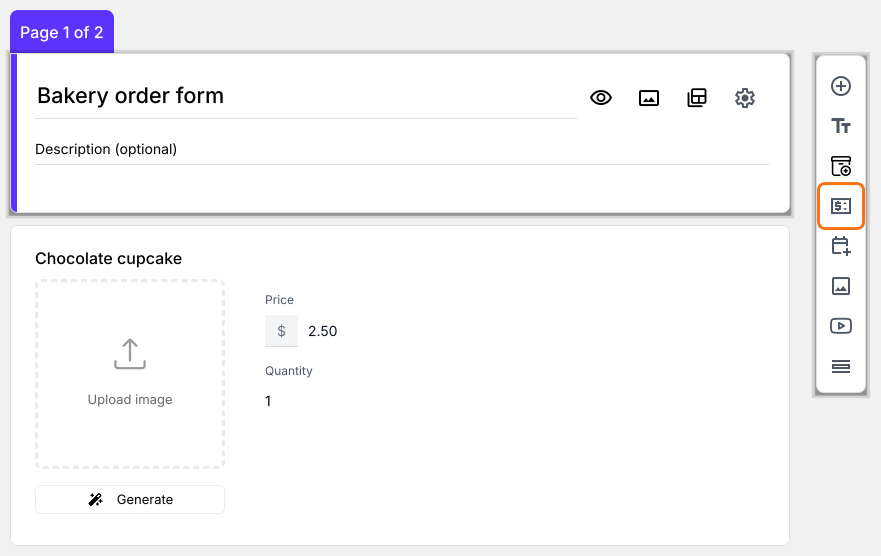
您的表單一開始就有產品、會自動加總的 Order Amount 問題和 Order Quantity 問題。
- 點選 Order Quantity 問題,再點選右側工具列中的 Add price field
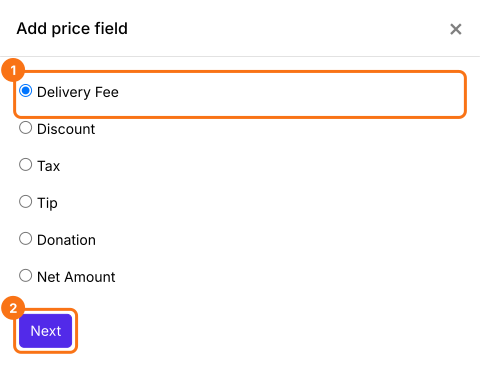
- 選擇 Delivery Fee,點選 Next
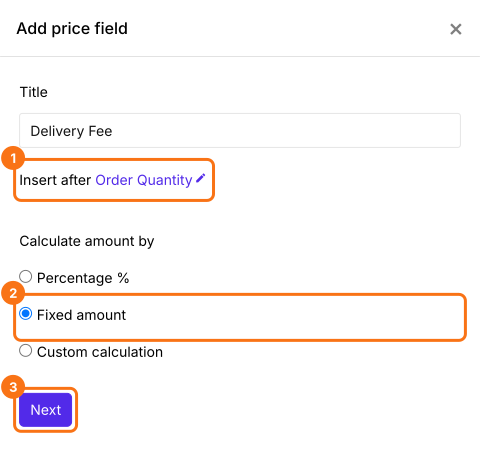
- 選擇 Fixed amount,點選 Next
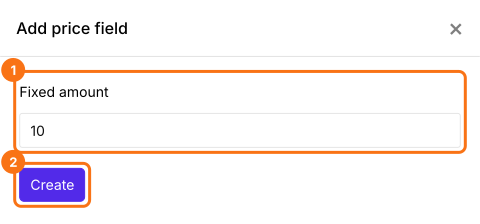
- 輸入費用,點選 Create。要設定 $10 的固定運費,就輸入 10
- 點選 Save
如何計算包含固定運費的總金額?
新增一個 Net Amount 價格欄位。它會自動加上 Delivery Fee。您的顧客支付 Net Amount。
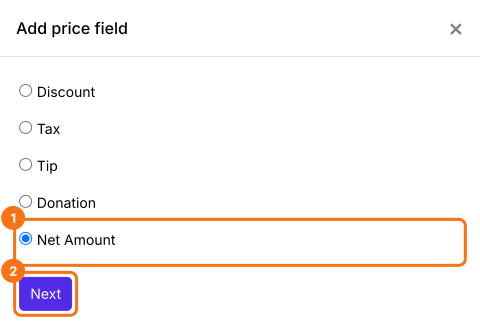
- 點選 Delivery Fee 問題,再點選 Add price field。選擇 Net Amount,點選 Next
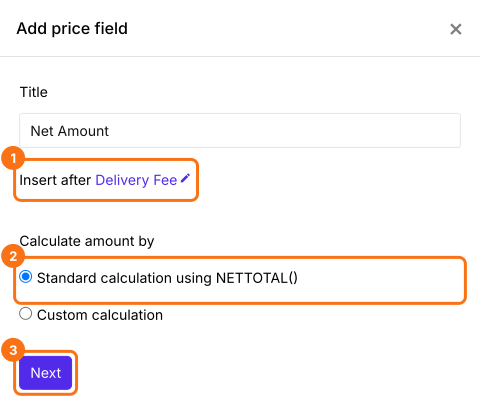
- 選擇 Standard calculation using NETTOTAL(),點選 Next
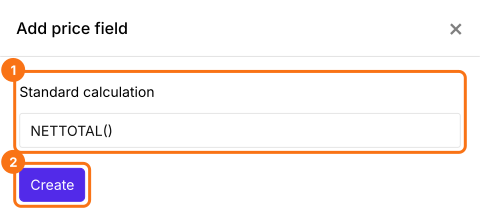
- 點選 Create
- 點選 Save
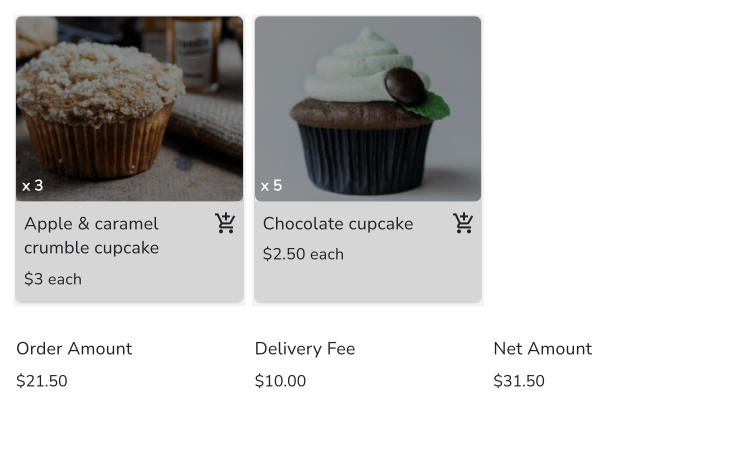
您的顧客在下單前,會在表單中看到 Order Amount、Delivery Fee 和應付的 Net Amount。您的顧客支付 Net Amount。
摘要
最後更新: