How to show an order summary including the customer details?
One wrong digit in a phone number or address can cost a failed delivery, and a Google Form never shows the customer what they typed before they submit. They can't spot the mistake, and you find it on delivery day. Neartail's review page can show the whole order back: with SUMMARY(true, true), it lists the products and the Order Amount along with every detail the customer filled in, so they check it all before they place the order.
Let's start. Import your Google Form and follow the steps below.
How to show the complete order details filled by the user?
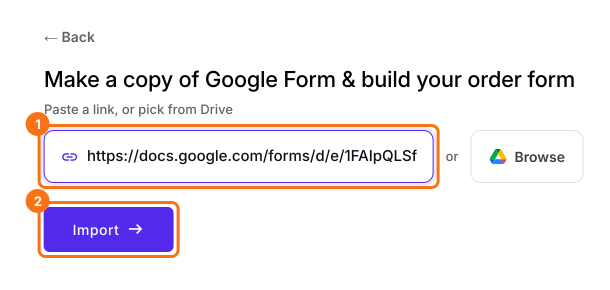
- On the page that opens, paste your Google Form's link or click Browse to pick it, then click Next.
- Under Select currency, pick your currency from the list and click Next.
- When it says "Your order form is ready!", Neartail has made a product from each question with a price and added an order total and summary. Click Preview your form. Your form opens in a new browser tab.
- Back on this page, under MANAGE, click Edit form. The form builder opens in another browser tab.
- Your form already has a section that shows the bill, called Review and place order in the pictures. Click on the section, then click the ⚙️ icon.

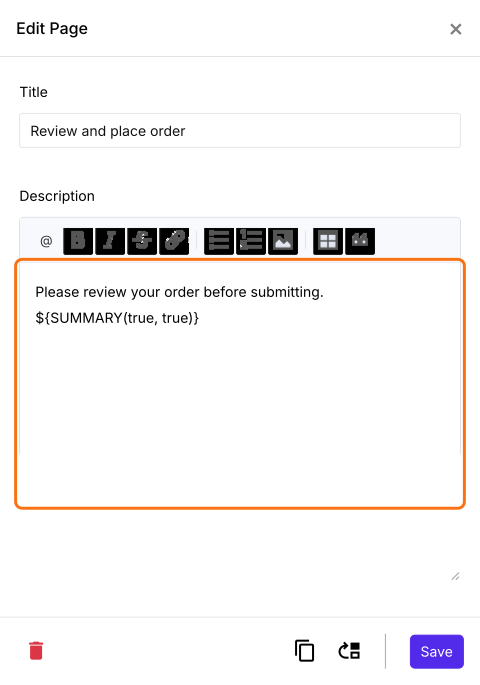
- In Edit Page, the description has the ${BILL()} formula. Replace it with the ${SUMMARY(true, true)} formula as shown below and click Save. Use it when customers should check their contact and delivery details, or when your products have options to choose.
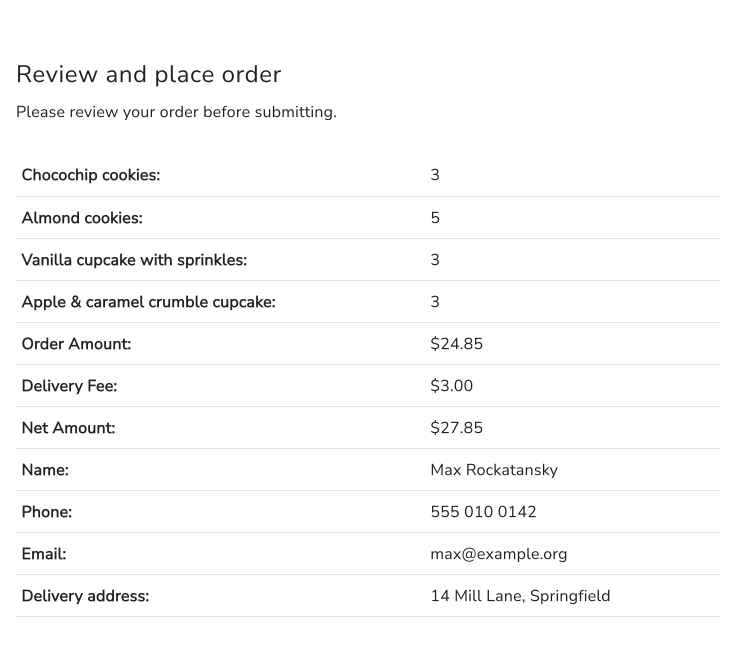
Your customers will see the products with their quantities, the order total and the details they filled in before they place the order.
Summary
Google Forms doesn't show customers their answers before they submit, so a wrong address goes unnoticed. With Neartail, SUMMARY(true, true) on the review page shows the products, the amount and the details they filled in, for them to check first. Import your Google Form and complete the steps above. If you have any questions, write to support.
Add the customer's details to your order summary.
Import your Google Form and put SUMMARY(true, true) on its review page, so customers check their products, total and every detail they typed before ordering.