How to submit Google Forms responses to WhatsApp on desktop
"I need to find a way to track my responses on WhatsApp"- Google Docs Editors Community
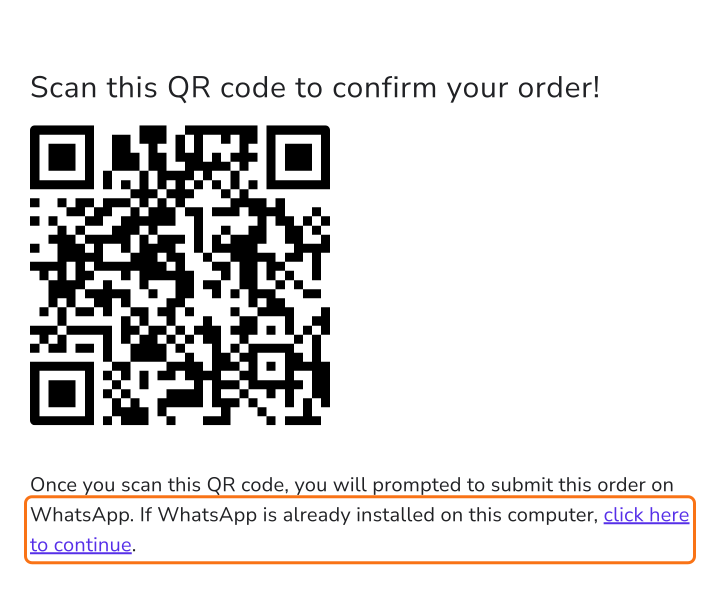
16 people on Google's forum have asked how to track their form's responses on WhatsApp. Your work runs on WhatsApp, but responses to your Google Form wait in the form or your inbox, so a new one can sit there unseen, and Google Forms has no option to send a response to WhatsApp. Many people fill in forms on a computer, where WhatsApp isn't always open. Neartail handles that: after they submit, the form shows a QR code. They scan it with their phone, or click the link below it if WhatsApp is on that computer, and their response opens as a message to your number, ready to send.
Let's start. Import your Google Form and follow the steps below.
How to send responses to your WhatsApp?
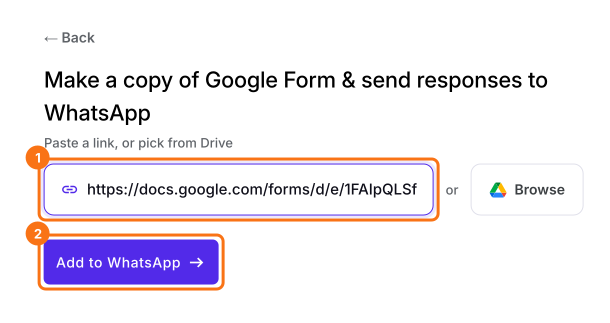
- On the page that opens, paste your Google Form's link or click Browse to pick it, then click Next.
- It makes a copy of your form. If it says "Your form is private or protected", click Next and give access or publish your form in Google Forms and paste that link.
- Under Select currency, pick your currency from the list and click Next.
- Under "Your users' responses will be sent to:", pick your country, type your WhatsApp number and click Next.
- When it says "Your WhatsApp form is ready!", Neartail has made a product from each question with a price and added an order total and summary. Click Preview your form. Your form opens in a new browser tab.
- Back on this page, under MANAGE, click Edit form. The form builder opens in another browser tab.
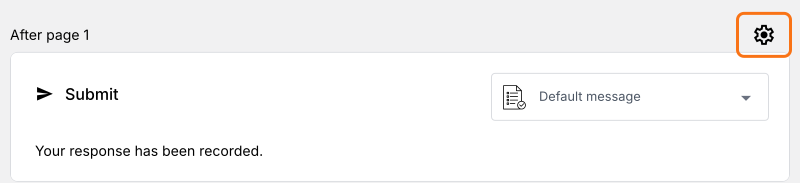
- Your form already sends responses to the WhatsApp number you typed in the import. To change it, click the gear icon in the last After page row, above the Submit button.
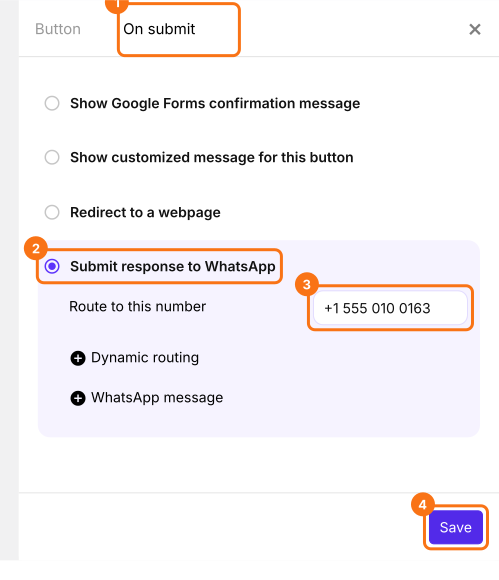
- Click On submit. Submit response to WhatsApp is already selected.
- Under Route to this number, enter your new WhatsApp number with your country code and click Save.
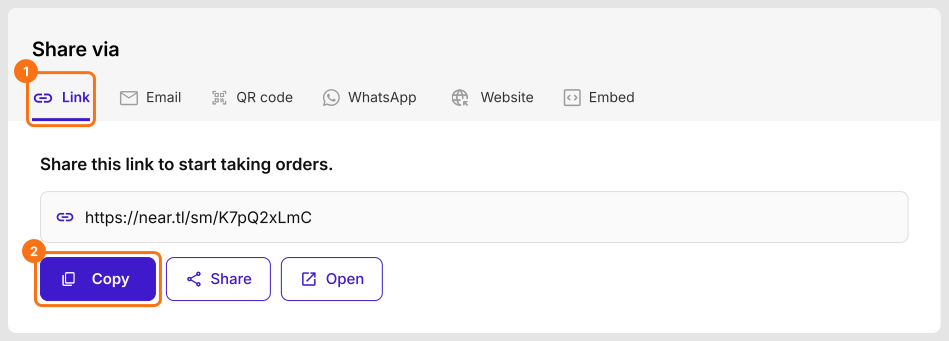
- Click the Share tab, click Link and copy the form link. This is the link people will open.
How to use Neartail Google Forms on your computer?
- Open the form link.
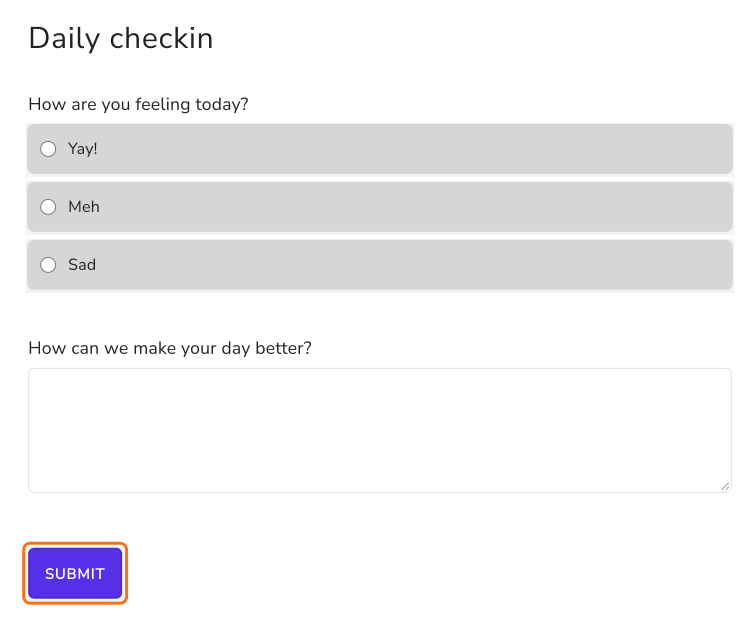
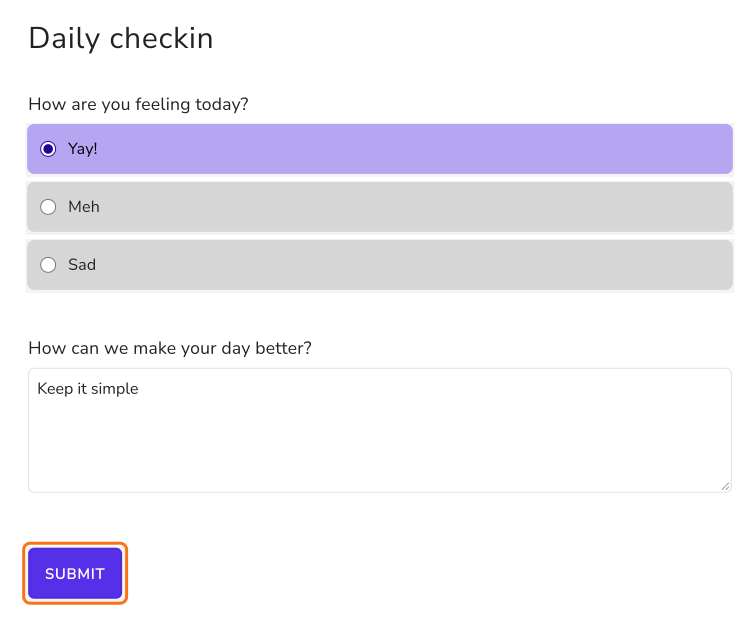
- Fill in the form and click Submit.
- It shows "Scan this QR code to confirm your order!". Scan it with your phone. If WhatsApp is installed on this computer, click "click here to continue" below the code.
- Click Continue to chat.
- If WhatsApp isn't installed on the computer, it offers to download WhatsApp or use WhatsApp Web. Click the WhatsApp Web link.
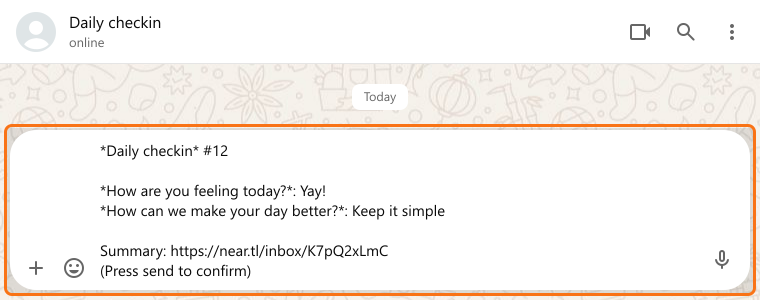
- The response is written out in the message box. Click Send.
Summary
Send your Google Form's responses to WhatsApp from a computer.
Import your Google Form and set Submit response to WhatsApp. People on a computer scan a QR code after Submit and their response opens as a message to you.