How to send intake forms before the appointment?
"intake forms to client but all forms in G suite DEFAULT TO GIVING EDITING ACCESS"- Google Docs Editors Community
A solo practitioner sending intake forms to new clients through G Suite runs into a problem 160 people on Google's forum have reported: the shared form can give clients editing access. Forms left for the waiting room use up the appointment, and you still have to ask each client whether they've finished. With Formesign, you email each client a form they can fill in and sign but can't edit, and the Kanban board shows who has submitted and who started but stopped.
Let's start. Create your form in Google Forms, then import it and follow the steps below.
1. Import your intake form
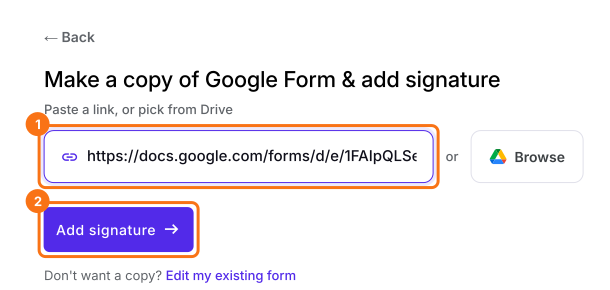
Publish your Google Form first or make one at form.new with a Client name question and click Publish. Click on Import your Google Form, click Import your Google Forms, paste its link (the form's address in your browser works) and click Add signature. Keep Simple signature, so clients sign without a Google account and click Next. Choose the question it goes after and click Next. On Your signing link is ready, click Edit form.
2. Email it to the client
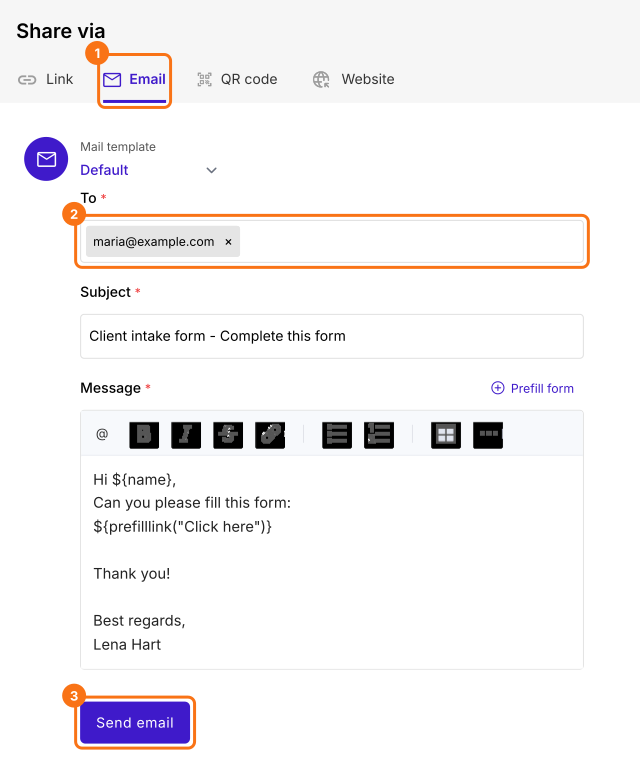
Click SHARE, click Email and type the client's email under To. Click Send email a few days before the appointment.
3. The client fills it in at home
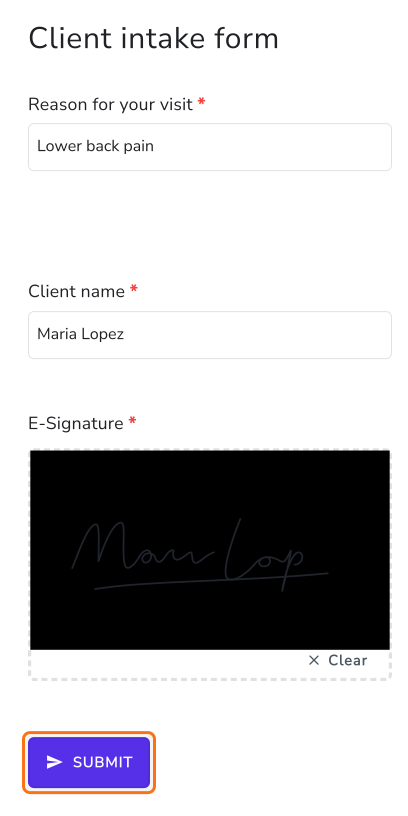
The client clicks the link in your email, answers and signs on their own phone. They only see the form, so they can't edit your questions.
4. See who has finished
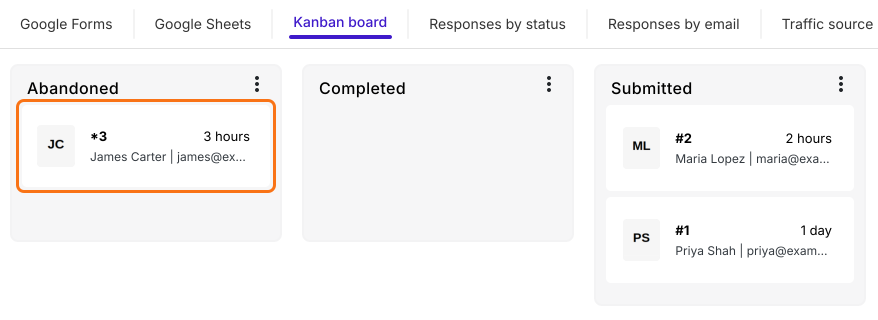
Click RESPONSES, then Kanban board. The Submitted column has signed forms and Abandoned has forms started but not finished, so you call only those clients and anyone with no card.
Summary
When forms have to be done before an appointment, sharing them can give people more access than they need and you can't tell who has finished. With Formesign, each person gets the form by email, fills it in and signs without edit access and you see who has submitted. Create your form in Google Forms, then import it and complete the steps above.
Last updated: