How to personalize the thank you message in your form?
"i want to edit the confirmation message with name or email or some number"- Google Docs Editors Community
After someone submits, the thank you message is your chance to confirm what they did: their name, what they chose, what happens next. Google Forms shows the same confirmation message to everyone and can't put their answers in it. With Neartail, you format the message and insert answers from the form, so each person sees their own name and choices when they submit. The message shows on your own branded page instead of Google's.
Let's start. Import your Google Form and follow the steps below.
Write the thank you message
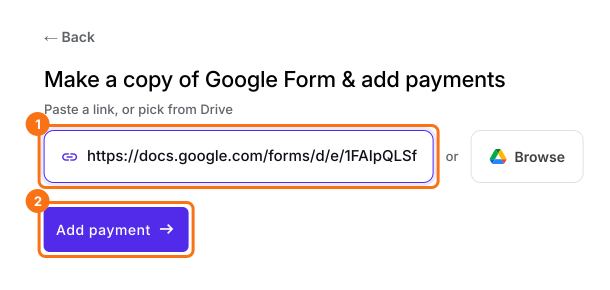
- On the page that opens, paste your Google Form's link or click Browse to pick it, then click Next.
- Select your currency and click Next.
- When it says how many products it found, Neartail has made a product from each question with a price and added an order total and summary. If it says no products were found, add a price to any question.
- Click Skip for now. When it says "Your payment form is ready", click Preview your form. Your form opens in a new browser tab.
- On the import page, click Edit form under MANAGE. The editor opens on the Edit tab, in a new browser tab.
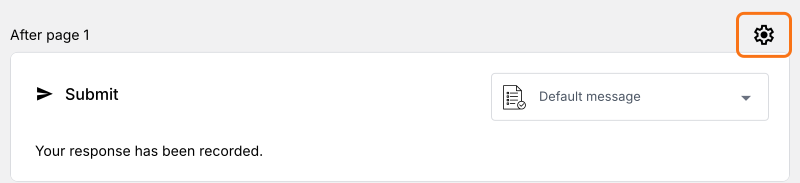
- Click the gear icon in the last row above the Submit button. That's the last After page row, or the After payment row if your form takes payment.
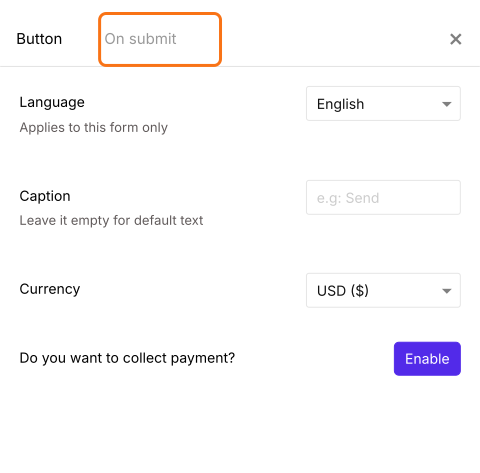
- Click On submit.
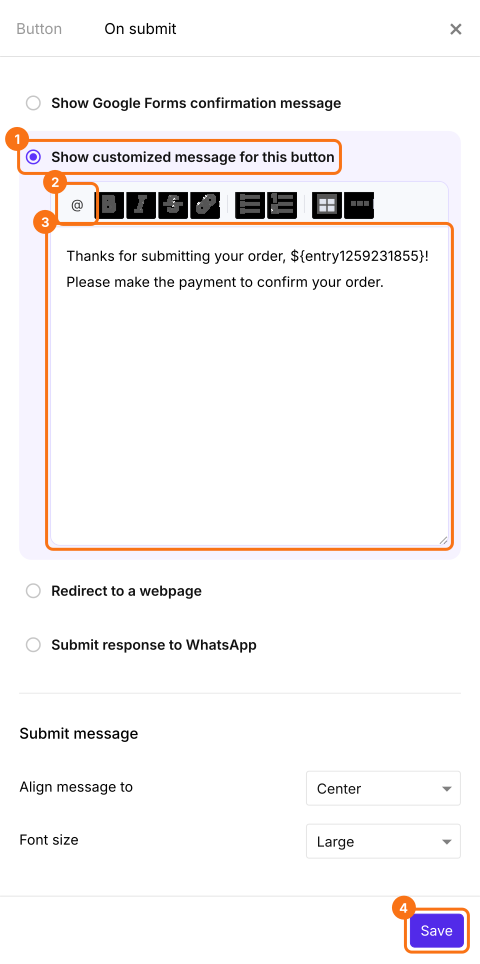
- Select Show customized message for this button and type your message. To put in an answer, click the @ icon and pick the question. It shows as a code in the box, and each person sees their own answer in its place. Click Save.
When someone submits the form, they see this message with their own answers in it.
Summary
Google Forms shows everyone the same confirmation message and can't use their answers in it. With Neartail, you format the thank you message and insert form answers, so each person sees a message about their own response. Import your Google Form and complete the steps above.
Put each person's answers in your thank you message.
Import your Google Form, write your message under On submit and insert answers with the @ icon, so each person sees their own answers after they submit.