How to ask for files with a signature?
"request a signature as well as documents from the signer"- DocuSign Community
This is a common need when a signature isn't the only thing you're waiting for. If you keep timesheets in Google Sheets, with a line for the supervisor to sign, payroll may want the site log with each signed timesheet. A file sent by email gets separated from the sheet and printing both means scanning them again. With Formesign, the supervisor adds the site log before signing. In this article, we will show you how to have the supervisor add the site log before signing, so that it goes in the signed PDF. Connect your Google Sheet and follow along the steps below.
1. Connect your timesheet
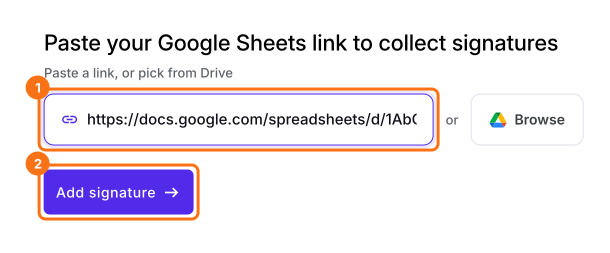
Click Import Google Sheet, paste your timesheet's link and click Add signature. On Let's connect your sheet, click Next, pick your sheet in Google Drive and allow access. Choose the tab to sign and add the signer, Supervisor.
2. Add a file question to the supervisor's block
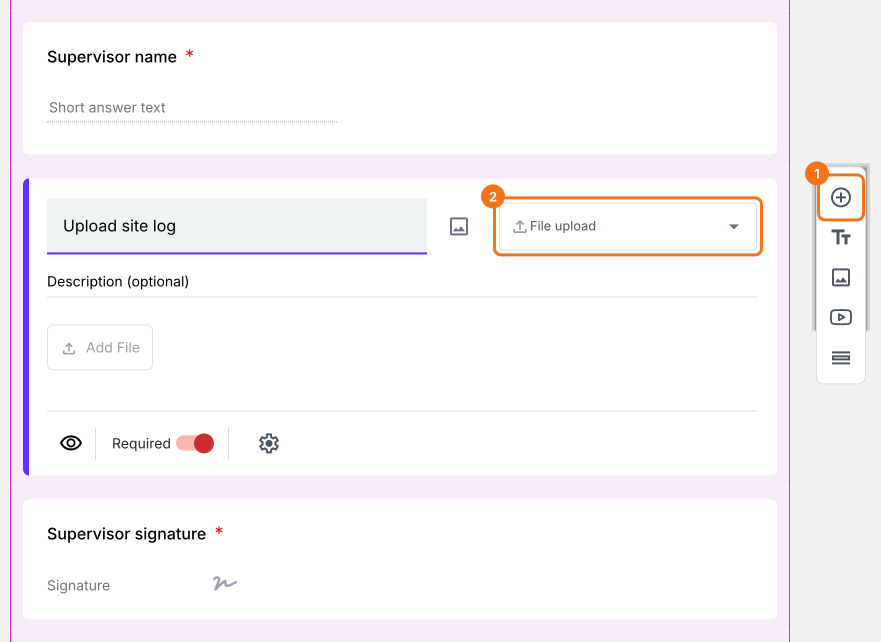
In EDIT, click Expand workflow on the block and click a field in it. Click the + on the right, name the question Upload site log and change its type to File upload.
3. Add the file to the signed PDF
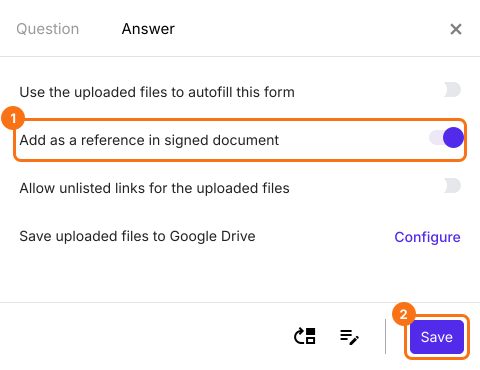
Click the question, then its gear and open Answer. Turn on Add as a reference in signed document and click Save.
4. The supervisor adds the file and signs
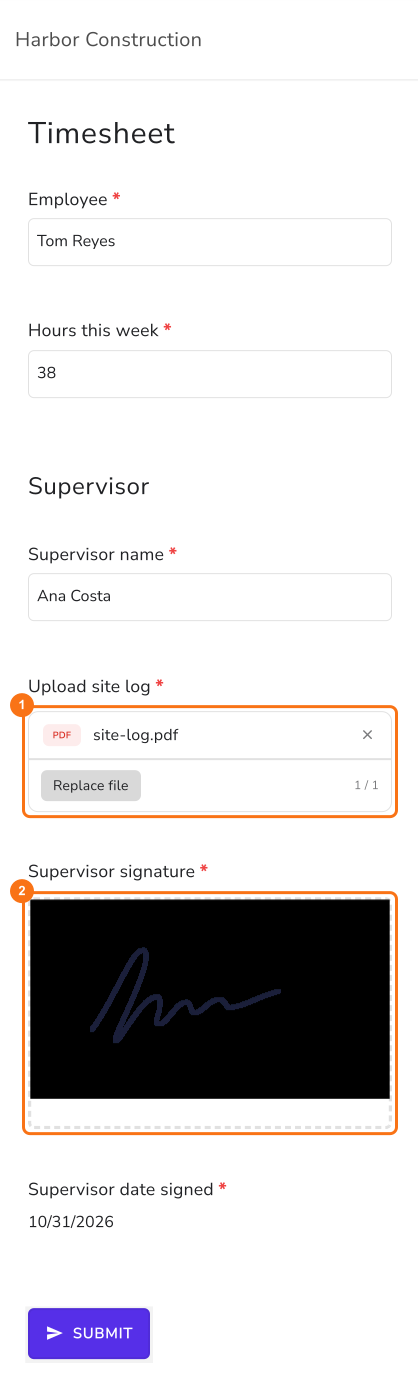
The supervisor opens your signing link, clicks Add file and chooses the site log. They sign and click SUBMIT.
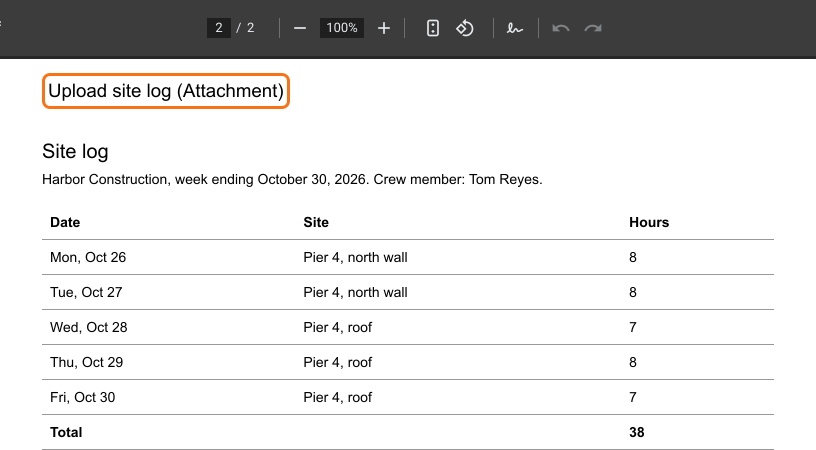
5. The site log is in the signed PDF
PDF, JPG and PNG files become pages of the signed PDF, so payroll gets the timesheet and the site log together. If the files add up to 10 MB or more, the PDF gets an Attachments page with links to them instead.
Summary
If payroll wants the site log with each signed timesheet, a file sent by email gets separated from the sheet. With Formesign, the supervisor adds the site log before signing and it goes in the signed PDF with the timesheet. Connect your Google Sheet and complete the steps above. If you have any questions, write to support.
Last updated: