How to send automatic signature reminders?
"The approver received the emails but deleted them"- Google Docs Editors Community
This is a common problem when requests go out by email. If you send each purchase request to an approver and the order has to go out this week, the email can get deleted or sink in the inbox, and nothing tells you. So you keep a list of who has what and write each reminder yourself.
In this article, we will show you how to set a reminder once, so that anyone who hasn't signed in time gets a fresh email with the link.
1. Open the signer list
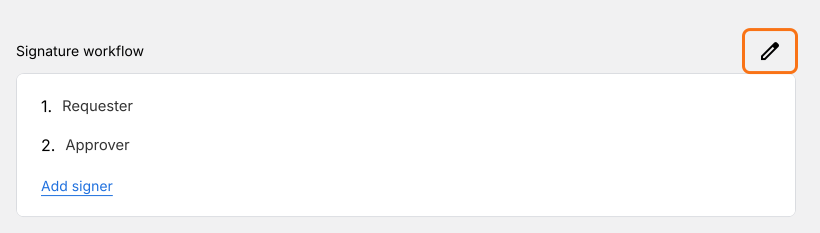
In the EDIT tab, scroll to Signature workflow and click the pencil. If you're starting new, click Import Google Form and add your signers first.
2. Turn on Set reminder
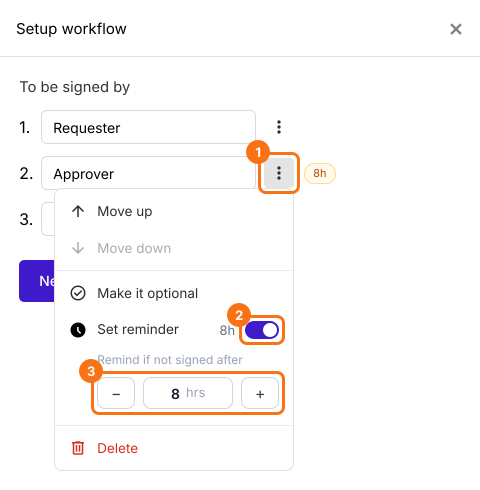
Click the three dots beside Approver and switch on Set reminder. Under Remind if not signed after, use − and + to set the hours.
3. The approver gets the reminder
If they haven't signed in time, they get this email with a new Review & sign button, even if they deleted the first one. The hours count from when the requester signs.
![The reminder email to ana@hotmail.com with the subject [Reminder] Sign Purchase request #2, and the Review and sign button marked](/banner/approval/faq/remind-approver-gets-email.svg)
4. Send it again if you need to
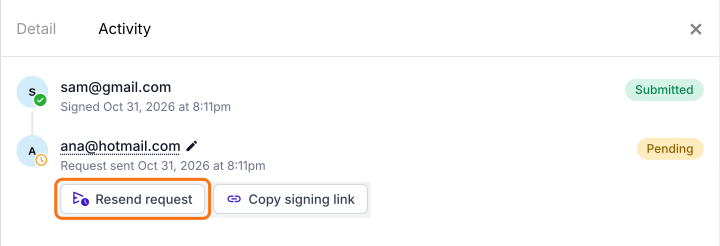
Each signer gets one reminder for each request. To send another, open SIGNED PDF, click the three dots on the card, choose Activity and click Resend request.
Summary
If an approver deletes the email or loses it in the inbox, nothing tells you, and you end up keeping a list and chasing by hand. With Formesign, you set a reminder once, and anyone who hasn't signed in time gets a fresh email with the link. You can send it again from Activity.
Last updated: