How to create a signature form from an outline?
"We are a not-for-profit and we are needing to create a volunteer form"- Google Docs Editors Community
This is a common need for small organizations. If you run a not-for-profit, volunteers have to fill in a form and sign it before they start and your next event is close. A blank Google Form has no signature question and writing every question yourself takes an evening you don't have. With Formesign, you type what the form is for and get a draft with the questions and a signature to edit. In this article, we will show you how to type what the form is for and get a draft with the questions and a signature, ready to edit. Create your form and follow along the steps below.
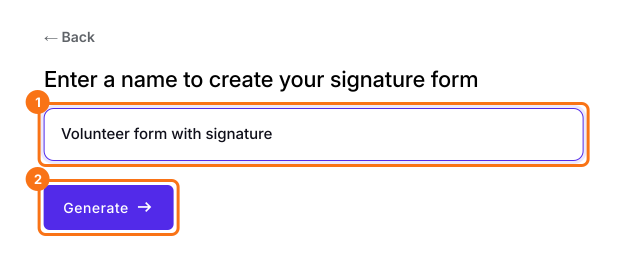
1. Enter a name
Click on Create your form, click Enter your form name, type what the form is for and click Generate. It takes about a minute. Volunteer form with signature gets you closer than Form.
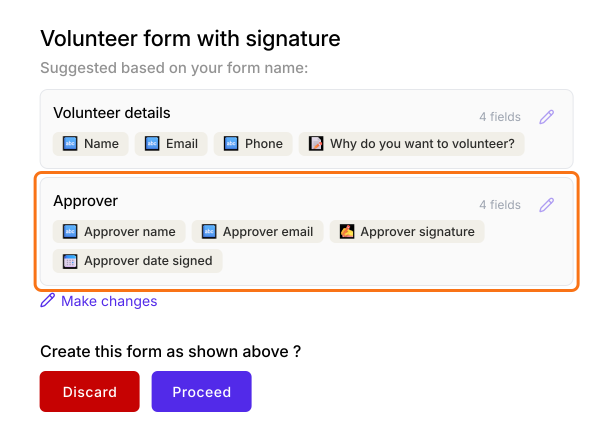
2. Check the outline
Each section lists its fields, so check that the questions fit your volunteers. The last section is the signer. The AI picks it from the name you typed, so it may not be who you want.
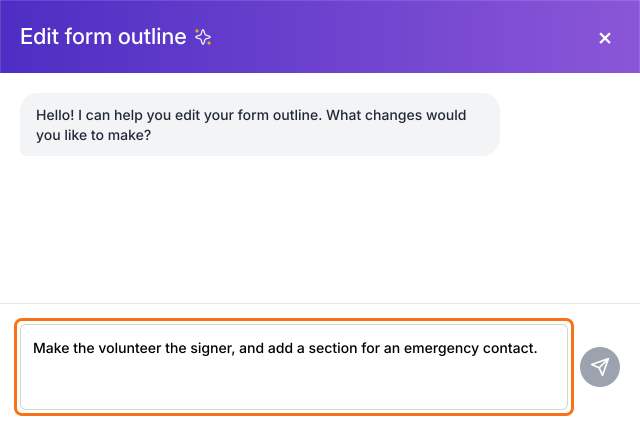
3. Ask for changes
Click Make changes, say what you want in plain words and click the send arrow. Here the volunteer signs, so ask for that.
4. Create the form
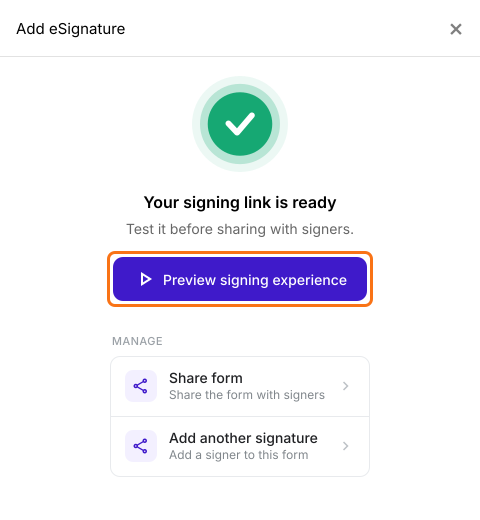
Click Proceed. You land on the EDIT tab, where the Add eSignature dialog says Your signing link is ready. The signer starts on Google Sign-in. If your volunteers have no Google account, close the dialog, click Expand workflow, click the signature field and click Not required beside Verify identity.
5. How a volunteer signs
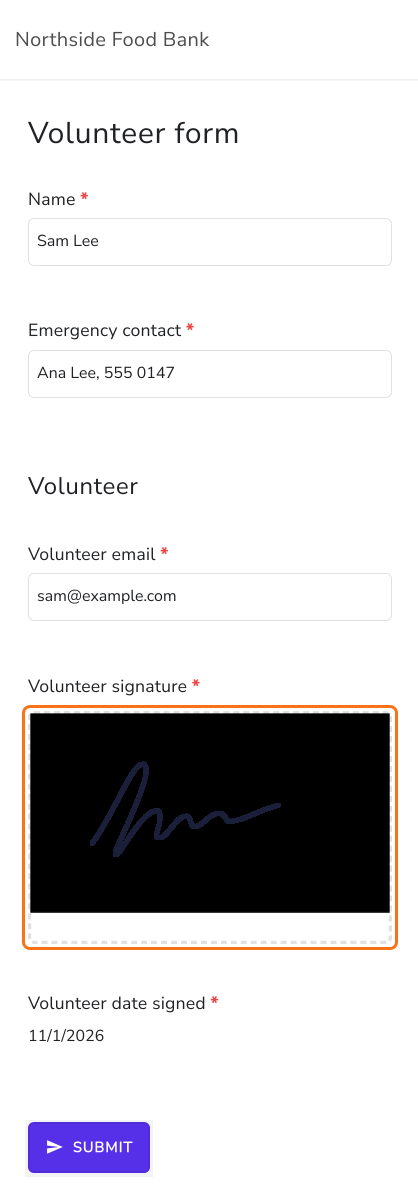
Click SHARE, click Copy and send the link. With one signer, their part is hidden on your link. Whoever opens it fills it in, clicks SUBMIT, enters the signer's email and clicks Proceed. The signer clicks Review & sign in their email, draws their signature and clicks SUBMIT.
Summary
If volunteers have to fill in a form and sign it before your next event, building it from a blank Google Form takes an evening and it still has no signature question. With Formesign, you type what the form is for and get a draft with the questions and a signature, ready to edit and share. Create your form and complete the steps above.
Last updated: